

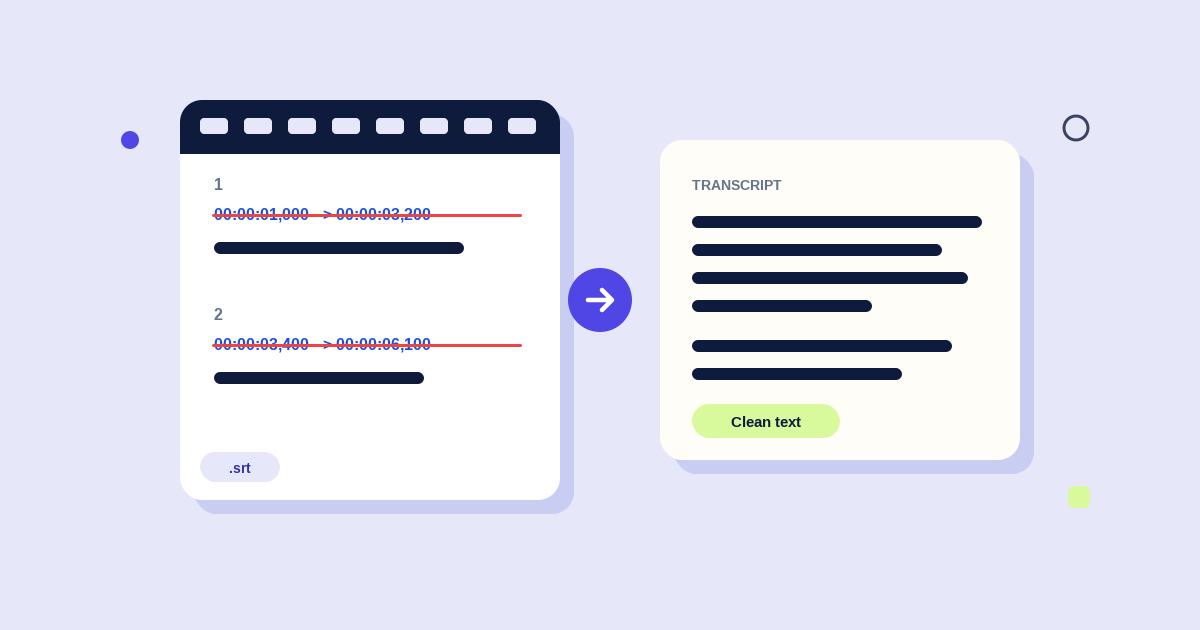
Subtitle files are useful for timed video captions, but their timestamps interrupt reading when you need a meeting transcript or an article draft. An SRT-to-text conversion removes the timing structure while keeping the spoken text available for editing.
The SRT to Text Converter handles this task in the browser. Start with a short sample so you can compare the result with the original before converting a longer recording.
Understand an SRT subtitle block
A typical block contains a cue number, a timing line and one or more caption lines:
1
00:00:01,000 --> 00:00:03,500
Welcome to the project update.

2
00:00:03,600 --> 00:00:06,000
Our next milestone is in 2026.
The useful transcript is:
Welcome to the project update. Our next milestone is in 2026.
The Library of Congress description of SubRip explains its text-based timing and subtitle structure. These timing instructions help a player synchronize captions; they are not needed in an ordinary prose transcript.
Convert subtitles step by step
- Open the converter and paste the SRT contents, or open a supported UTF-8
.srtfile. - Choose continuous paragraph output or preserved subtitle line breaks.
- Decide whether to remove formatting tags and consecutive repeated captions.
- Select Clean text and review any message about unrecognized blocks.
- Copy the transcript or download the text file, then proofread it against the recording.
Keep the original subtitle file. Once timing and cue metadata are removed, the transcript alone cannot reconstruct the original synchronized captions.
If the imported text looks garbled, check the file's encoding and save a separate UTF-8 copy. Renaming an unrelated file to .srt does not convert its encoding or subtitle format.
Why subtitle numbers need careful handling
A quick regular expression that deletes every numeric line can remove legitimate dialogue. A speaker might say a year, a product number or a numerical answer, and the subtitle may contain only 2026 on that line.
The converter recognizes cue structure instead of assuming that every number is an index. A numeric index belongs before a recognized timing line; a number inside the caption belongs to the transcript.
After cleaning, inspect a few numeric examples deliberately. Check years, prices and reference numbers rather than relying only on whether the opening sentence reads smoothly. Blocks with unrecognized timing are retained for review rather than silently discarded as though they were valid cues.
Choose paragraphs or preserved line breaks
Continuous output is convenient for drafting a blog post or newsletter. It joins caption text so that display-sized fragments no longer interrupt every sentence. You will still need to create sensible editorial paragraphs and headings.
Preserved line breaks are useful when you want to compare captions with the source or keep short dialogue units separate. They are not guaranteed to represent complete sentences, speaker changes or meaningful paragraphs; subtitle wrapping often follows screen space and timing.
Optional tag removal can simplify captions containing formatting markup. Review a sample first if those tags carry information you intend to retain. Likewise, consecutive duplicate removal is helpful for some repeated captions, but it is not a general method for deleting all repeated phrases from a recording.
Turn a transcript into readable writing
Cleaning timestamps is only the first editing step. Read the text for transcription errors, missing punctuation and ambiguous references. Separate speakers where the recording makes their identities clear, and verify names or quotations before publishing.
For controlled terminology changes, follow the find-and-replace guide. Check the result rather than replacing every similar word automatically. Then use the word and character counting guide to measure the finished draft instead of the subtitle metadata.
If the transcript repeats a phrase too frequently, the word frequency tutorial provides a separate review workflow. It does not replace listening to the original audio for accuracy.
Frequently asked questions
Does this tool transcribe a video or audio file?
No. It cleans existing subtitle text. You need an SRT transcript before using this conversion workflow.
Will my subtitle formatting be lost?
Timing and recognized cue indexes are removed. Paragraph mode changes line layout, and optional tag removal changes formatting. Preserve the source file for synchronized playback.
Does local processing mean I can share any transcript?
No. The conversion code does not upload your text, but copied or downloaded output can be shared elsewhere. Check permission and confidentiality before publishing a transcript.