

Repeated edits are easy to miss when you change a draft one occurrence at a time. Find and replace can update a repeated phrase consistently, remove an unwanted token or replace a temporary label. It is most useful when the match is specific and the result can be reviewed. It is not a substitute for understanding the sentences you are changing.
The Utilizeio Find & Replace Text tool performs literal replacement in your browser. It supports an option to ignore letter case, but it does not currently provide regular-expression input or a whole-word switch. This guide explains the actual controls, practical examples and precautions needed to avoid accidental edits.
What is find and replace?
Find and replace searches a piece of text for an exact string and substitutes another string wherever that match occurs. If the text contains draft three times, finding draft and replacing it with proposal changes all matching occurrences in a single processing action. The operation is useful for predictable repetition rather than interpretation.
The find string can be a word, phrase or sequence of punctuation. The replacement can be another string or empty. An empty replacement removes the matched text; an empty find field is rejected because it does not identify a meaningful target. The tool works with plain text, not a word processor's formatting or a database's records.
How the current tool works
Utilizeio treats the find field literally. Characters that have a special meaning in regular expressions are escaped before matching. Finding a.b therefore matches that exact sequence, not any letter between a and b. This prevents an ordinary search phrase from accidentally becoming a pattern with broader behaviour.
Matching is case-sensitive by default. The Ignore letter case checkbox applies case-insensitive matching to the same literal find string. Each match receives the replacement exactly as entered; the tool does not preserve the original match's capitalization. Replacement characters such as $& are literal text, not special substitution commands.
Processing uses the browser's text matching rules and applies non-overlapping replacements across the input. It does not automatically repeat the search inside newly inserted text. For example, replacing a with aa doubles each original matched a once; it does not continue expanding the result forever.
Find and replace text online: step by step
- Save an original copy of the passage in your own document.
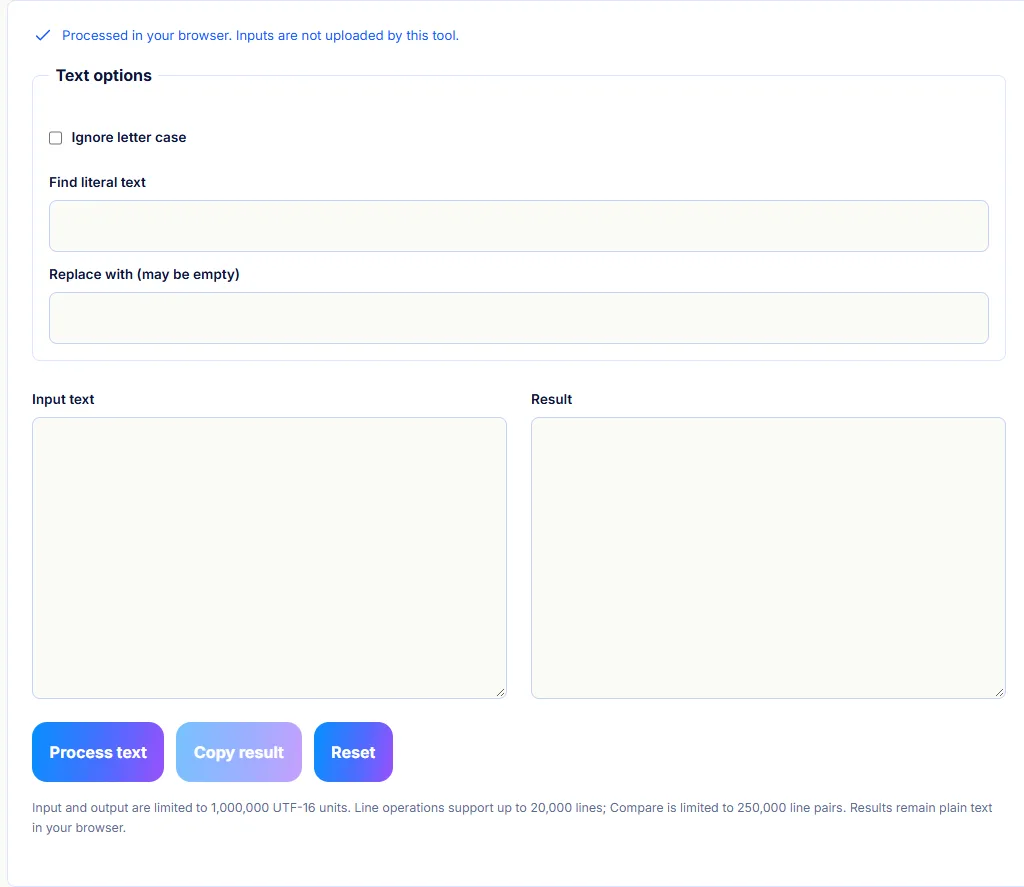
- Open Find & Replace Text and paste the passage into Your text.
- Enter a specific search string in Find literal text.
- Enter the desired string in Replace with, or leave it empty to remove matching text.
- Leave Ignore letter case unchecked for exact capitalization, or check it only if all letter-case variants should be replaced.
- Select Process text and inspect the separate result area.
- Use Copy result after reviewing the changes. Reset clears the current working inputs and result.
Start with a short sample that includes a normal match, a case variant and a near match that should remain unchanged. That sample helps reveal whether partial matching is suitable for your task. Do not paste a confidential or important document without retaining a copy elsewhere; the tool is not persistent document storage.
Practical before-and-after examples
| Input | Find | Replace with | Ignore case | Result |
|---|---|---|---|---|
draft draft |
draft |
proposal |
No | proposal proposal |
Cat cat CAT |
cat |
dog |
No | Cat dog CAT |
Cat cat CAT |
cat |
dog |
Yes | dog dog dog |
a.b a-b |
a.b |
x |
No | x a-b |
remove [temp] now |
[temp] |
empty | No | remove now |
cat catch catapult |
cat |
dog |
No | dog dogch dogapult |
The final example is deliberately undesirable. It demonstrates why a literal substring replacement should not be described as whole-word replacement. Finding a short word can also change longer words that contain it. Choose a more specific phrase or edit those occurrences manually when you need a word-boundary decision.
Find and replace versus manual editing
Manual editing is useful when each sentence needs a different decision. Find and replace is useful when the same exact correction applies consistently throughout a passage. A renamed label or repeated placeholder can be a good target; a word with several meanings may not be. Think about whether context changes the intended replacement.
A practical compromise is to run one narrow transformation, review it, and then handle exceptions manually. Use a source-and-result comparison for important text. Utilizeio also has a Text Compare tool, but a visual read of the affected sentences remains essential when a replacement changes meaning or grammar.
Do not describe a global replacement as an error-free editing service. It can apply your instruction faithfully even when the instruction itself is too broad. Consistency is valuable only when the chosen change is correct for every matched occurrence.
Case-sensitive replacement
With the default settings, finding invoice will not change Invoice or INVOICE. That is useful when a case distinction is intentional. Checking Ignore letter case broadens matching to those variants, but it inserts the same replacement text each time. It does not produce Receipt, receipt and RECEIPT automatically.
If you need different capitalizations, perform separate case-sensitive passes on a copy and review each result. Alternatively, make the wording change first and use the Text Case Converter for a separate formatting task. Be careful: applying sentence or title case to an entire passage can also affect proper nouns and acronyms.
Case-insensitive Unicode matching is not the same as language-aware editing. The tool has no locale selector and does not infer grammatical forms. For names or terms whose spelling depends on language conventions, test a representative sample and inspect the final result.
Whole-word versus partial matching
Whole-word matching would change a standalone word while leaving longer words untouched. Partial matching changes the target anywhere it occurs in the string. The current Utilizeio tool uses partial matching and has no whole-word checkbox. A user-entered \bcat\b is treated literally; it does not activate regular-expression boundaries.
Adding spaces around a find string is not a complete substitute for whole-word matching. It can miss a word at the beginning or end, beside punctuation, or next to a tab or line break. Such a search may be appropriate for a tightly controlled passage, but it does not solve every boundary case.
When whole-word matching is essential, use an editor with an explicit, documented whole-word option or make the change manually. This is preferable to assuming an unavailable feature exists. The examples above let you test the distinction before changing a real draft.
Common mistakes
Searching for a very short fragment can modify parts of unrelated words. Replacing a product term without checking plurals can leave awkward sentences. Removing a token with an empty replacement can leave doubled spaces. These are consequences of the exact string operation, not evidence that the tool understands or repairs the surrounding language.
Do not confuse a space with a tab or line break. The find field does not automatically normalise whitespace or treat visibly similar punctuation as interchangeable. Straight and curly quotation marks are different characters. If a match appears to be missed, compare the actual characters rather than repeatedly broadening the search.
Avoid overlapping changes whose order matters. Replacing red with blue and then replacing blue with green also affects the blue inserted by the first pass. Keep intermediate results and plan the order explicitly. One successful pass does not provide permanent undo history for the whole editing workflow.
Best practices
Use the longest practical unique phrase, test a small sample, and change one kind of term at a time. Inspect the beginning and end of the passage as well as its middle. For a critical document, compare the source and result and confirm that deliberate exceptions survived.
Check length after replacement. A new phrase can add words or characters, so use the Word Counter before submitting a constrained description. Removing text does not guarantee a clean final sentence; read it aloud or review it in context.
The tool bounds input and generated output to one million UTF-16 units. A replacement that expands the result beyond that limit is rejected rather than allowed to allocate an unbounded output. This is a technical size limit, not a promise that every device will process a maximum-sized passage equally quickly.
Common use cases
Replace a repeated temporary project label, standardise an exact phrase or remove a known placeholder. Update a repeated date only when every occurrence should change; a document may contain historical dates that must remain. For copied templates, review the full text afterwards rather than assuming the replaced name was the only detail needing attention.
Keep replacement scoped to the passage you intend to edit. This tool operates on pasted text; it does not change files, websites, account records or database entries elsewhere. Copying the result back into another system is a separate action you control.
Frequently asked questions
Can I remove a word instead of replacing it?
Yes. Enter the literal target and leave the replacement empty. Review the result for extra spaces, punctuation or sentences that now need manual correction.
Does it replace every occurrence?
It replaces all non-overlapping matches in the provided input under the selected case setting. It does not repeatedly search the newly inserted replacement text within the same operation.
Can I use regular expressions?
Not in the current tool. The find string is escaped and matched literally. Pattern symbols and boundary expressions do not enable a hidden regular-expression mode.
Does it support whole-word matching?
No. It currently matches substrings, including those inside longer words. Use a suitably specific phrase or an editor with a genuine whole-word feature when that distinction matters.
Will ignore-case replacement preserve capitals?
No. It broadens matching but inserts the replacement exactly as typed for every match. Use separate exact-case edits if different replacement capitalizations are required.
Is my text uploaded for processing?
The current implementation processes text locally in the browser. Approved analytics events do not contain your input or output. Keep an original copy because the page is not a saved-document system.
Make consistent edits, then review them
Find and replace saves repetitive typing when the target is specific and the intended change is consistent. Preserve your source, test the case setting and check partial matches before copying the result. Open Find & Replace Text to make your next controlled replacement.