

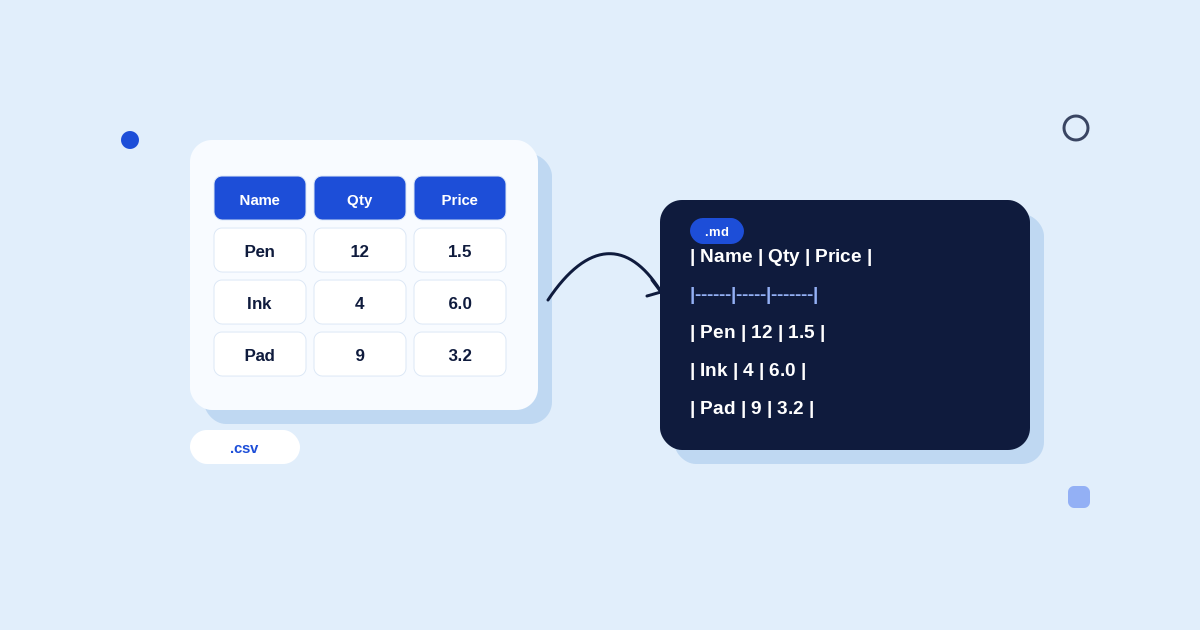
A small table can take longer to format than the explanation around it. CSV exports use separators and quotes, while a GitHub README needs pipes and a header divider. Converting the data is straightforward only when the parser understands where each cell begins and ends.
This walkthrough uses the CSV to Markdown Table Converter to turn spreadsheet cells or CSV text into documentation-ready source. It also explains the edge cases worth checking before you commit the result.
Start with a small CSV example
Suppose your project has this test inventory:
id,name,status
01,Sample import,Ready
02,Preview export,Pending
A Markdown version is:
| id | name | status |
| --- | --- | --- |
| 01 | Sample import | Ready |
| 02 | Preview export | Pending |
The second line identifies the header row. Extra spaces can make the source easier to read, but they do not control column widths in the rendered page. Your Markdown renderer decides how the table fits its layout.
Tables are an extension in GitHub Flavored Markdown, so a plain Markdown processor may behave differently. Preview the result in the system where readers will actually see it.
Convert CSV or spreadsheet cells step by step
- Copy the source data, including the header if it has one.
- Paste it into the converter's input area.
- Choose the correct delimiter, or review the result of automatic detection.
- Set whether the first row contains headers and whether source spacing should align.
- Select Create Markdown table, then copy the output or download the
.mdfile. - Paste into your README and inspect the rendered preview before saving.
Data copied from a spreadsheet often uses tab separators even when it looks like a visual grid. Choosing tabs explicitly is a useful first troubleshooting step when the converter sees one very wide column.
If the source came from a database terminal with border characters, use the SQL result conversion tutorial instead. That workflow distinguishes terminal tables from structured CSV exports.
Why splitting every comma is unreliable
A comma can be part of a value. For example:
name,note
Demo project,"Review, revise, publish"
The second row has two cells, not four. Quoted fields can also contain line breaks or escaped quotes. RFC 4180 describes common CSV quoting conventions, including doubling a quote inside a quoted field.
The converter reads these boundaries instead of blindly splitting each line at every comma. If a row has the wrong number of cells, investigate the source rather than adding random separators until the error disappears. A missing closing quote can make later rows look like part of one value.
Handle pipes, line breaks and special characters
A pipe character inside a cell could otherwise create an unintended Markdown column. The converter escapes supported formatting characters and HTML-like text in the generated output. Multiline cells become generated <br> separators; verify that your destination permits them.
For very long descriptions, a table may be less readable than a list. Use tables for comparable fields such as names, statuses and short values. Link to a separate explanation when a cell becomes a full paragraph.
Aligned source spacing works best for ordinary ASCII text. Emoji and wide characters may occupy different visual widths in an editor, even though the cell values remain unchanged. Do not mistake source alignment for damaged data.
Review the finished documentation
Check the first and last row, a quoted value and any empty cell. Confirm that identifiers such as 01 still look the way you intend; this converter treats cells as text rather than interpreting identifiers as numbers.
Remove confidential rows before preparing public documentation. Conversion runs in browser memory, but a copied table can still end up in clipboard history, an exported file or a public repository.
For headings around the table, the text case conversion guide explains capitalization choices. If a larger README repeats the same wording, use the word frequency review workflow after formatting the data.
Frequently asked questions
Can I paste directly from Excel?
Yes, supported tab-separated clipboard data can be converted. Check the delimiter and header option before creating the table.
Will aligned spacing make the rendered columns wider?
No. Alignment changes the source layout; the Markdown renderer controls the displayed table.
Does the converter guarantee the same appearance in Notion?
No. Markdown import and paste behavior vary between editors. Test a small table in your destination first.