

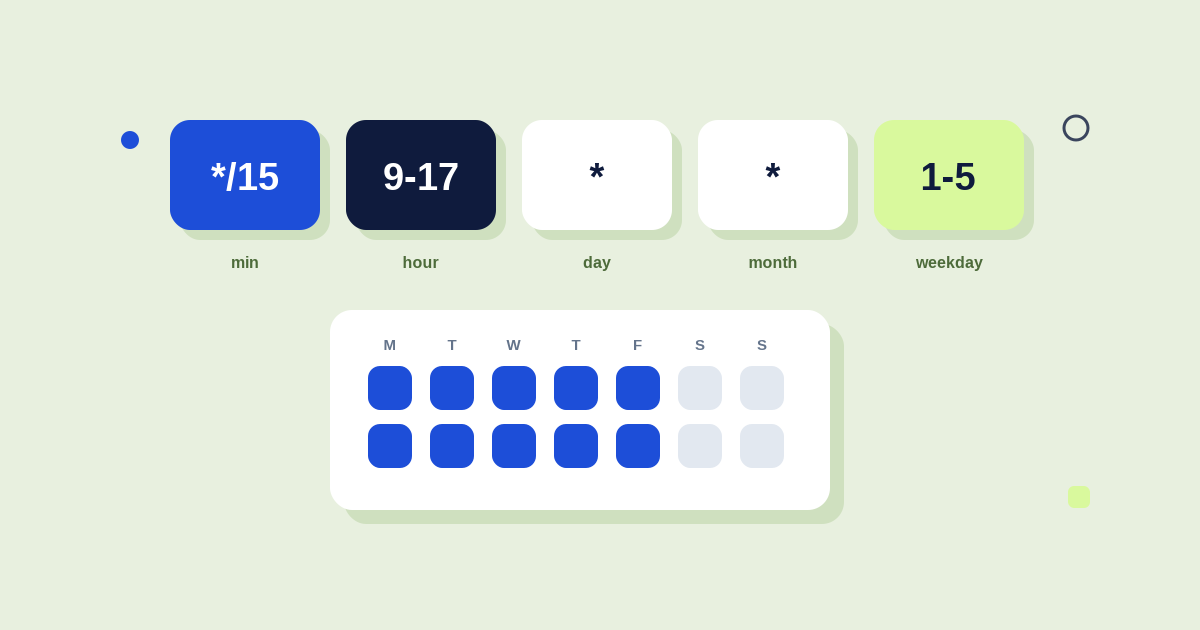
Cron expressions describe when a recurring job should run. They are compact enough to fit on one line, but moving a number into the wrong field can change a weekly task into a daily one. Learning the field order is more useful than memorizing a long list of schedules.
Use the Cron Expression Generator to build a schedule, read its explanation and compare the individual fields. Generating an expression does not install or execute a job.
Read the five fields from left to right
This tool uses the common five-field Unix-style layout:
minute hour day-of-month month day-of-week
For example:
0 15 * * 2
This selects minute zero, hour 15 and Tuesday, with every month and day of the month available. In ordinary language, it describes Tuesday at 15:00 in the scheduler's timezone.
| Field | Example | Meaning here |
|---|---|---|
| Minute | 0 | At the start of the hour |
| Hour | 15 | 3 PM on a 24-hour clock |
| Day of month | * | Any calendar day |
| Month | * | Any month |
| Day of week | 2 | Tuesday |
The crontab manual describes the Unix-style field ranges and scheduling rules. Other schedulers may add a seconds field, a year field or different operators, so identify the target dialect before copying an expression.
Generate a schedule step by step
- Open the generator and select a repeat pattern.
- Choose the relevant minute, hour, weekday or calendar date.
- Select Generate expression to confirm the generated schedule.
- Read the explanation and field cards together.
- Copy only after checking the intended scheduler's timezone and syntax.
The controls also update the preview as you change a supported setting. The explicit generate action gives you a confirmation of the expression currently shown; it does not create a background process.
To inspect an existing expression, paste just its five schedule fields and select Explain cron. Leave out the command, username and any unrelated crontab content.
Understand stars, ranges, lists and steps
A star selects every value in its field. A list chooses separate values, while an ascending range chooses a continuous group. A step selects values at intervals inside a field.
Compare these examples:
*/15 * * * *
0 9 * * 1-5
30 8 1 * *
They describe quarter-hour clock points, weekday mornings at 09:00, and the first calendar day of each month at 08:30 respectively.
A subtle difference appears with */7 in the minute field: the selected minutes restart each hour. The jump from minute 56 to minute zero is four minutes, so this does not guarantee a continuous seven-minute interval. Use a scheduler designed for elapsed intervals if that is the requirement.
Avoid the day-of-month and weekday trap
When both day fields are restricted, traditional Unix cron uses an OR rule. For example, 0 9 1 * 1 matches the first day of the month or Monday. It does not mean only the first Monday.
This distinction can substantially increase the number of runs. Use the tool's day-rule explanation and compare it with the documentation for the actual scheduler. Do not translate an expression from one scheduling service into another without checking compatibility.
Timezones and missing dates
A schedule is interpreted by the scheduler, not by the browser where you generated it. A laptop set to one timezone and a server set to another can display very different local expectations for the same hour field.
Likewise, a schedule for the 31st has no matching date in shorter months. Daylight-saving changes can skip or repeat local times. For important jobs, confirm upcoming execution times in the target scheduling system and decide how duplicate or missed runs should be handled.
Keep environment settings separate from the expression itself. The ENV / JSON conversion guide can help organize configuration examples, while the URL query inspection guide helps when you are debugging a scheduled request's parameters.
Frequently asked questions
Can I include seconds in this generator?
No. This tool expects five schedule fields. A scheduler that needs seconds requires a compatible expression and parser.
Does copying an expression turn on a job?
No. Installation, command configuration and execution belong to your chosen scheduler.
Does every valid expression produce a real calendar match?
No. A combination such as February 31 has no matching date. Review the warnings and check the target scheduler before relying on it.